
Download Files – Free Modern File Explorer for Windows, Mac, Android & iOS
Looking for a sleek, fast, and feature-rich alternative to the default Windows File Explorer? Files is a free, modern file management tool developed by Yair Aichenbaum. Built as a UWP (Universal Windows Platform) app, it brings a fresh, Fluent Design-inspired interface to your desktop and mobile devices.
With support for light and dark themes, tabbed browsing, OneDrive integration, and touch-friendly navigation, Files offers a contemporary experience that aligns perfectly with Windows 10 and 11. Whether you're managing files on a laptop, tablet, or smartphone, this lightweight software delivers a smooth, intuitive workflow. Best of all, it’s completely free to download and use—no hidden costs or ads.
With continuous updates and growing feature support, Files is quickly becoming one of the most promising file explorers for users who want more than the default system tools.
Key Features of Files – A Modern Take on File Management
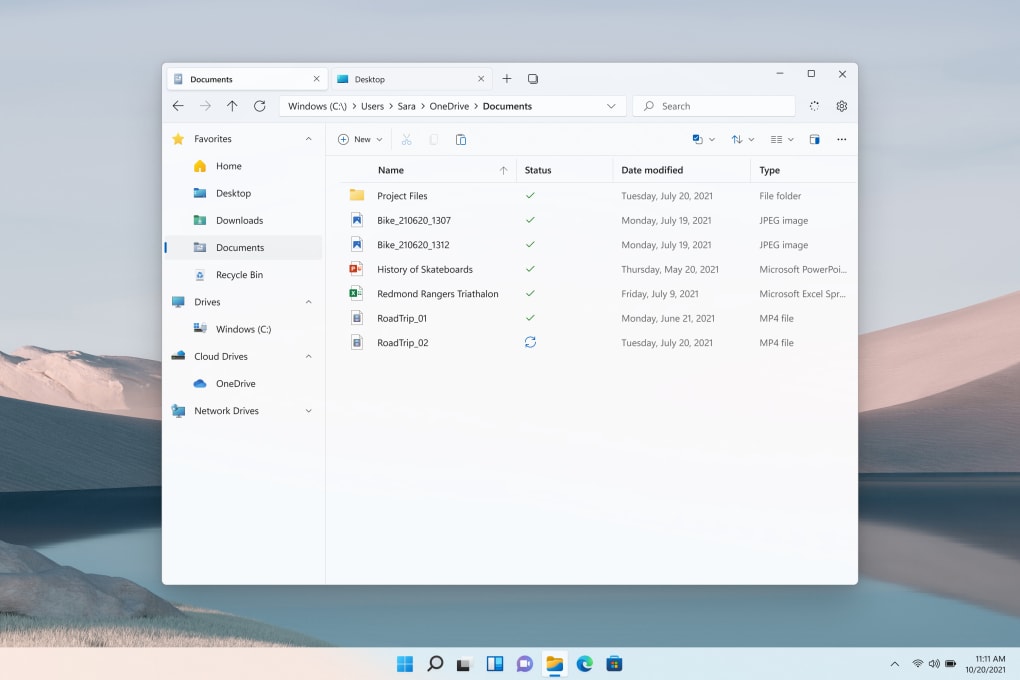
Files isn’t just about aesthetics—it’s a powerful upgrade to the traditional file explorer with several practical enhancements. One of the standout features is tabbed browsing, which allows users to open multiple folders in separate tabs, just like a web browser. This makes multitasking between projects, documents, and media libraries far more efficient.
You can drag and drop files between tabs or directly into folders, streamlining the organization process. The app also supports OneDrive integration, letting you manage cloud-stored files directly from the interface. This includes viewing, renaming, moving, and even freeing up space by removing unused files from your cloud storage.
Another major improvement is the touch-friendly design, making it ideal for hybrid devices like 2-in-1 laptops and tablets. With intuitive gestures and responsive controls, navigating through folders feels natural whether you're using a mouse, trackpad, or touchscreen. The app also includes light and dark mode support, ensuring eye comfort in any environment. Additionally, Files leverages Fluent Design principles—subtle animations, acrylic blur effects, and smooth transitions—that give it a polished, modern look that feels native to Windows 10 and 11.
For power users, the app supports quick file preview and batch renaming, which can save significant time when organizing large collections. While it doesn’t yet support advanced features like file compression or encryption, the core functionality is solid and well-executed. With regular updates, the development team is actively improving performance and adding new tools, making Files a promising long-term alternative to the default file manager.
How to Install and Use Files on Windows, Mac, Android, and iOS
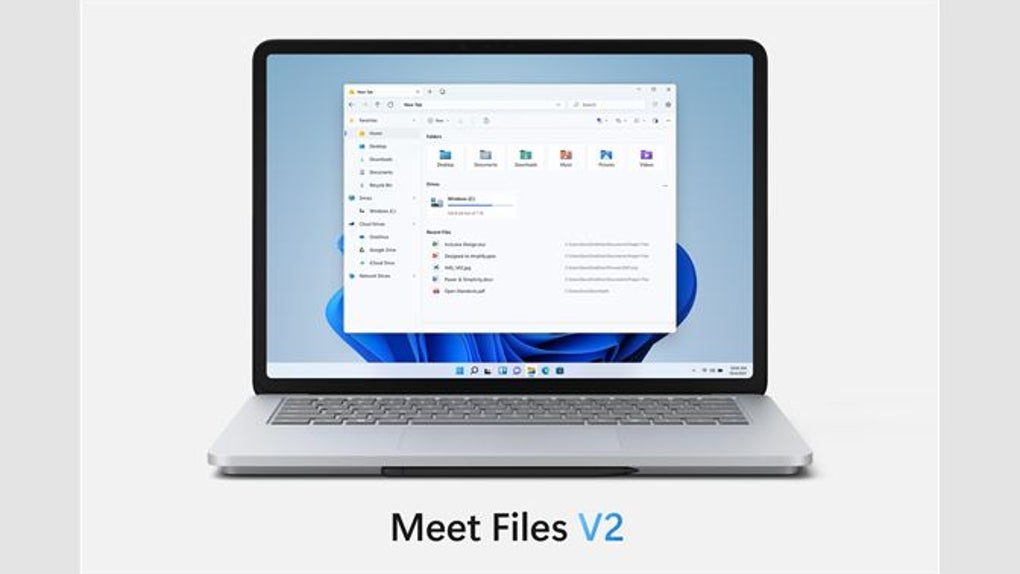
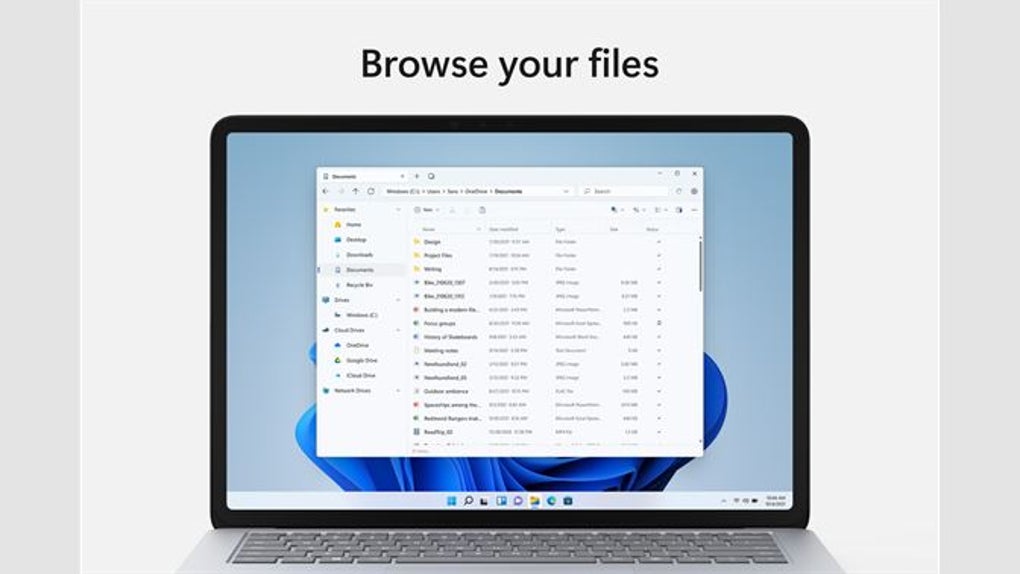
Getting started with Files is simple and hassle-free. The app is available for Windows 10 and 11 via the Microsoft Store, where you can download it for free. To install, open the Microsoft Store, search for “Files,” and click “Get” to begin the download. Once installed, launch the app from your Start menu or desktop shortcut. The interface is clean and intuitive—your main drive, recent folders, and OneDrive files appear in a sidebar, while the main window displays the contents of the selected folder.
For Mac users, Files is not officially available on macOS. However, the developer has hinted at future cross-platform support, so keep an eye on the official website for updates. On Android and iOS, the app is available through their respective app stores. The mobile versions offer a streamlined experience optimized for touch, with features like swipe gestures, quick file access, and cloud sync. On mobile, you can browse local files and manage OneDrive content with ease.
Once installed, use Files like a traditional file explorer: double-click to open folders, right-click for context menus, and drag files between locations. The tab system lets you keep multiple folders open simultaneously—perfect for comparing files or transferring data between projects. You can also pin frequently used folders to the sidebar for instant access. For advanced users, the app supports keyboard shortcuts, which can be customized in the settings. Overall, the learning curve is minimal, making it accessible for beginners while still offering depth for experienced users.
Compatibility: Works Across Windows, Mac, Android & iOS
Files is primarily designed for the Windows 10 and 11 ecosystem, where it runs as a UWP application. This ensures seamless integration with the operating system, including live tile support, background updates, and access to system-level file operations. The app is optimized for both desktop and tablet modes, making it ideal for users with hybrid devices.
While there is no official version for macOS, the developer has acknowledged the demand and is considering future releases. Until then, Mac users may need to rely on third-party alternatives like ForkLift or Path Finder. For Android and iOS, Files is available on Google Play and the App Store, respectively. The mobile apps are lightweight, fast, and designed with touch navigation in mind. They offer full access to local storage and OneDrive, allowing users to manage files on the go.
Despite its cross-platform ambitions, Files currently lacks full parity across all platforms. For example, some features like tabbed browsing are more advanced on desktop, while mobile versions focus on simplicity and speed. However, the core experience remains consistent—clean interface, fast performance, and reliable file handling. As the app evolves, users can expect better synchronization and feature consistency across devices.
Pros and Cons of Using Files – Honest Review
- Pros:
- Modern, Fluent Design interface with light and dark mode
- Tabbed browsing for efficient multitasking
- Seamless OneDrive integration and cloud management
- Touch-friendly and mouse-friendly navigation
- Free to download and use with no ads
- Regular updates and active development
- Cons:
- Not a full replacement for the default Windows File Explorer (missing some advanced features)
- Performance can lag when loading large folder structures
- No official macOS version available yet
- Mobile versions lack some desktop-level features
- File compression and encryption not supported
Frequently Asked Questions (FAQ)
-
Is Files free to download and use?
Yes, Files is completely free to download and use. There are no in-app purchases, ads, or subscription fees. The app is supported by the developer’s commitment to providing a high-quality, open-source file management tool.
-
Can I use Files as my default file explorer on Windows?
While Files can replace the default File Explorer for basic tasks, it is not yet a full replacement. Some system-level operations and advanced file management features are still missing. However, you can use it as your primary tool for daily file management.
-
Does Files support OneDrive?
Yes, Files has built-in OneDrive integration. You can view, edit, move, and manage files stored in your OneDrive account directly from the app. It also allows you to free up space by removing unnecessary files from the cloud.
-
Is Files available for Mac?
Currently, there is no official version of Files for macOS. However, the developer has expressed interest in bringing the app to Mac in the future. Keep an eye on the official website for announcements.
-
How often does Files receive updates?
The development team releases regular updates to improve performance, fix bugs, and add new features. Users are encouraged to keep the app updated via the Microsoft Store or app stores on mobile devices.
Final Verdict: Is Files Worth Downloading?
If you're looking for a modern, visually appealing, and functional file explorer that enhances your Windows experience, Files is definitely worth a try. Its clean design, tabbed interface, and OneDrive integration make it a joy to use, especially for users who value aesthetics and efficiency. While it’s not yet a complete replacement for the default File Explorer, it’s a strong contender for daily file management tasks.
With ongoing improvements and a growing feature set, Files has the potential to become the go-to file manager for Windows and mobile users. Whether you're a student, professional, or casual user, this free tool can simplify how you organize and access your files.
Download Files today from the Microsoft Store or your preferred app store and experience the future of file management—fast, secure, and beautifully designed.







